Stream Live from Your Phone for Free: No App or Account Needed
Stream Live from Your Phone for Free: No App or Account Needed
Most people assume that going live on camera requires a heavy application, a sign-up form, and a stack of settings nobody understands. In practice, the phone already in your hand is a capable broadcast studio, and the browser on that phone is one of the most underused streaming tools you own. Free Live Streaming builds on exactly this idea: a free live video broadcast from your phone, started directly in the browser, with no download and no account. The Related material from the earlier level covers the basic premise, and this article narrows the focus to the fast, practical steps that get a broadcaster on air within minutes.
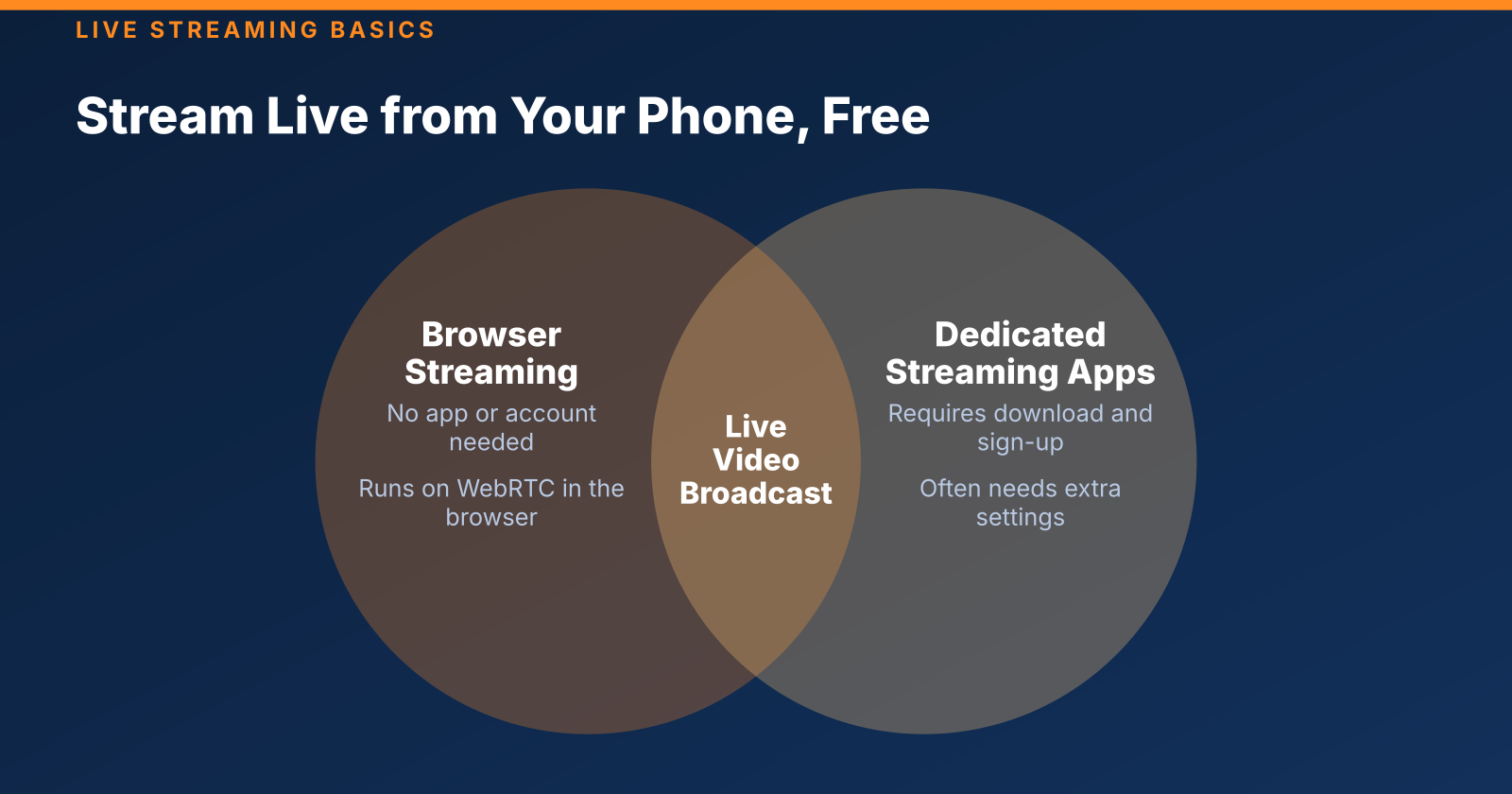
The short answer to how to live stream from phone without an app is that a modern mobile browser can capture the camera and microphone through web permissions and send that media in real time. The browser technology behind this is WebRTC, which lets a web page transmit video and audio directly without a native application. Current mobile versions of Chrome, Safari, and Firefox support it, while older builds and restricted in-app browsers often do not, and they tend to show a camera error that looks like a hardware fault. Checking the browser version before anything else is the single fastest way to avoid wasted time.
It fails predictably when one of them is ignored, and most failures trace back to upload bandwidth, audio setup, or an unchecked background
- Scan the frame as a viewer would see it before going live, turn off notification previews on the phone, and move any sensitive items out of frame
- A browser-based service may collect technical information such as connection details and device type to make the stream work, and the privacy policy of the specific page you use describes what it stores
- Its limits show up as the audience grows: a single phone with one connection has no redundancy, no scene switching, and no way to combine multiple sources
- Treat the phone as a real broadcast device: measure its connection, set the resolution to fit the lowest reliable upload figure, keep the audio clean, and test from a separate device before going live
Browser Streaming: How a Phone Camera Goes Live Without an App
When a page requests camera access, the browser asks the operating system for the video device, and the page receives a live preview only after the permission is granted. This is why no-install streaming works at all: the heavy lifting of encoding and transmission is handled by the browser engine that is already on the phone. The limits are equally specific. Browsers may suspend camera access when a tab moves to the background, and some privacy configurations block camera access by default. If the stream stops the moment you switch apps, that is the browser doing exactly what it was designed to do, not a fault in the page.
Choosing a destination matters as much as the capture itself. A web-based broadcast needs a receiving page that accepts a WebRTC connection and produces a viewer link, so the broadcaster does not have to create an account or configure a server. Free Live Streaming is built around this model: the broadcaster opens the page, the page generates a link, and viewers connect through that link. The trade-off is that you depend on the browser and the page staying open for the duration of the session, so this approach suits short, focused broadcasts rather than multi-day channels that need scheduled uptime.
The phone's own hardware sets a ceiling as well. Sustained video encoding draws significant power and produces heat, and a hot phone reduces processing speed, which appears as dropped frames rather than a clear error message. For the purposes of a quick broadcast, this means the browser route is strongest for sessions of roughly thirty minutes to an hour, where a charged phone can hold steady without overheating.
Setting Up a Quick Broadcast in Minutes
Preparation takes less than five minutes and removes most of the failures that happen after the stream starts. Begin with the physical setup: place the phone on a stable surface or a basic stand, orient it horizontally for a wider frame, and face a light source rather than standing with a window behind you, because backlighting turns the subject into a silhouette. Keep the battery above roughly 80 percent or connect a charger, and disable auto-lock so the screen does not sleep mid-session. These steps cost almost nothing and prevent the most common interruptions.
Permissions come next, and they are the step people misread most often. Camera and microphone access must be granted at the browser level, and on many phones the operating system has a separate toggle for that browser. Enabling only one of them leaves the page reporting that access is blocked. Grant both, then reload the page, because some browsers do not apply a new permission to a tab that was already open. Once access is granted, switch between the front and rear cameras and confirm that the preview changes. If it does not, the page may be reading a default device, and viewers will see the wrong image.
Starting the session is straightforward: generate the viewer link, then test it before sharing. Open that link on a separate device, ideally on a different network such as cellular if you are broadcasting over Wi-Fi. This confirms the stream is reachable from outside your own connection, which is the only test that matters to a viewer. When the session ends, close the page deliberately. A tab left open in the background can keep the camera and upload running without your knowledge, which drains the battery and creates a privacy risk.
Stream Quality Tips for Small Screens and Limited Bandwidth
Upload bandwidth, not download speed, determines the quality you can hold. A practical baseline is 3–5 Mbps of stable upload for a 720p stream, and most mobile connections are asymmetric, so a high download figure says little about upload capacity. Measure upload on the exact network you will use, at the time of day you plan to broadcast, because a connection that performs well at mid-morning can congest by evening. If the measured figure falls short, lower the resolution rather than hoping the stream will hold. A 720p target suits most cellular and shared Wi-Fi connections, while 1080p usually needs more consistent upload than a typical phone network provides.
Bitrate is the lever that changes upload demand most directly. Start with a conservative bitrate, run a short test session, and raise it only if the stream holds steady. If motion stutters while the audio continues, the upload is saturated, and lowering the bitrate fixes the cause in a single step. Frame rate works similarly: a lower frame rate reduces the data sent per second and is often less noticeable on a small screen than a stuttering high-rate picture.
Audio is the element viewers notice first when it fails, and it is often more important than picture quality. Check the input level while speaking at normal distance and watch for clipping, which sounds like harsh distortion on peaks; if you hear it, reduce the input gain. Echo happens when speaker output reaches the microphone and is sent back to viewers, and the most reliable fix is headphones, since they keep the output out of the microphone entirely. Keep the phone close to the speaker's mouth, because distance from the microphone is the largest single factor in clean voice pickup, and move away from fans, traffic, and hard reflective walls that add echo.
Network changes during a broadcast cause abrupt drops. Moving between Wi-Fi and cellular, or walking out of Wi-Fi range, can break the connection. Choose one network before starting and stay on it. If you must move, expect the connection to re-establish, and keep the resolution conservative so the reconnection has headroom. Readers who want a closer look at how browser-based capture works can check out Related material that explains the setup step by step.
Practical Micro-Cases and Quick Tips
A teacher running a short question-and-answer session can open a browser link to students in a classroom or at home. The useful constraint is audio: a teacher who uses headphones avoids echo, and a fixed phone on a desk keeps the framing steady across the session. For a session of this length, a Wi-Fi connection gives a steadier upload path than cellular, which makes it the better default in a school building.
A local vendor showing products live faces a different problem: the camera must move, and movement changes the upload load. The practical adjustment is to lower the resolution before showing close-up detail, then return to the default when the camera holds still. Keeping product handling slow and the framing steady makes the picture easier to encode and easier for viewers to follow on small screens.
A traveler sharing a street event with viewers in another time zone depends on cellular upload, which is often throttled below its advertised speed. Keep the resolution at 480p or 720p, expect the bitrate to fluctuate, and keep the battery charged with a power bank, since the phone heats up quickly outdoors in direct sun.
Before every broadcast, run this short checklist: confirm upload speed on the network you will use, grant camera and microphone permissions at both browser and operating system levels, test the audio at normal speaking distance with headphones, open the viewer link on a separate device, and check the frame for anything private before going live.
Privacy, Safety, and Audience Management Without Accounts
Because no account is required, the viewer link is the only control you have over who sees the broadcast, and that link should be treated as a key. Share it only with the audience you intend, and assume that a link posted publicly can be found and reused. Decide in advance who should receive it, and avoid posting it on open forums if the content is private.
The background is the bigger practical risk. A room with personal documents, a visible address on an envelope, a screen showing notification previews, or a shop window revealing a location can all reach viewers without your intent. This step takes less than a minute and eliminates the most common accidental disclosure.
Data handling is also worth understanding. Read that policy before a broadcast that involves private people, and avoid filming others without their agreement.
Connecting Free Phone Streaming to Your Broader Streaming Strategy
Browser-based phone streaming works best as an entry point. It lets you test an idea, run a one-off broadcast, or reach a small audience without committing to software, equipment, or an account. When those limits begin to matter, the next step is a dedicated encoder or a streaming platform with uptime guarantees, and the earlier material on equipment and basics becomes relevant.
For readers who want to grow beyond casual broadcasts, the practical sequence is clear. Start by making the phone-only setup reliable, measure its real upload and session length, and note the failures that recur. Those recurring failures tell you what the next tool needs to fix. A broadcaster who understands why a stream dropped is far better placed to choose better hardware than one who simply upgrades without a diagnosis. The general concepts behind live video transmission are described in the live streaming entry on Wikipedia, which offers a broader context for these choices.
The conclusion is that a free live stream from a phone is practical when the browser, the permissions, the upload capacity, and a short test session all line up. Done this way, a browser-based phone broadcast becomes a dependable tool rather than a gamble, and it gives you a clear baseline for deciding when a more advanced setup is worth the cost.


Комментарии
Отправить комментарий